Balabolka Review 2026: Free TTS Software That Looks Like 2005 — And Still Works
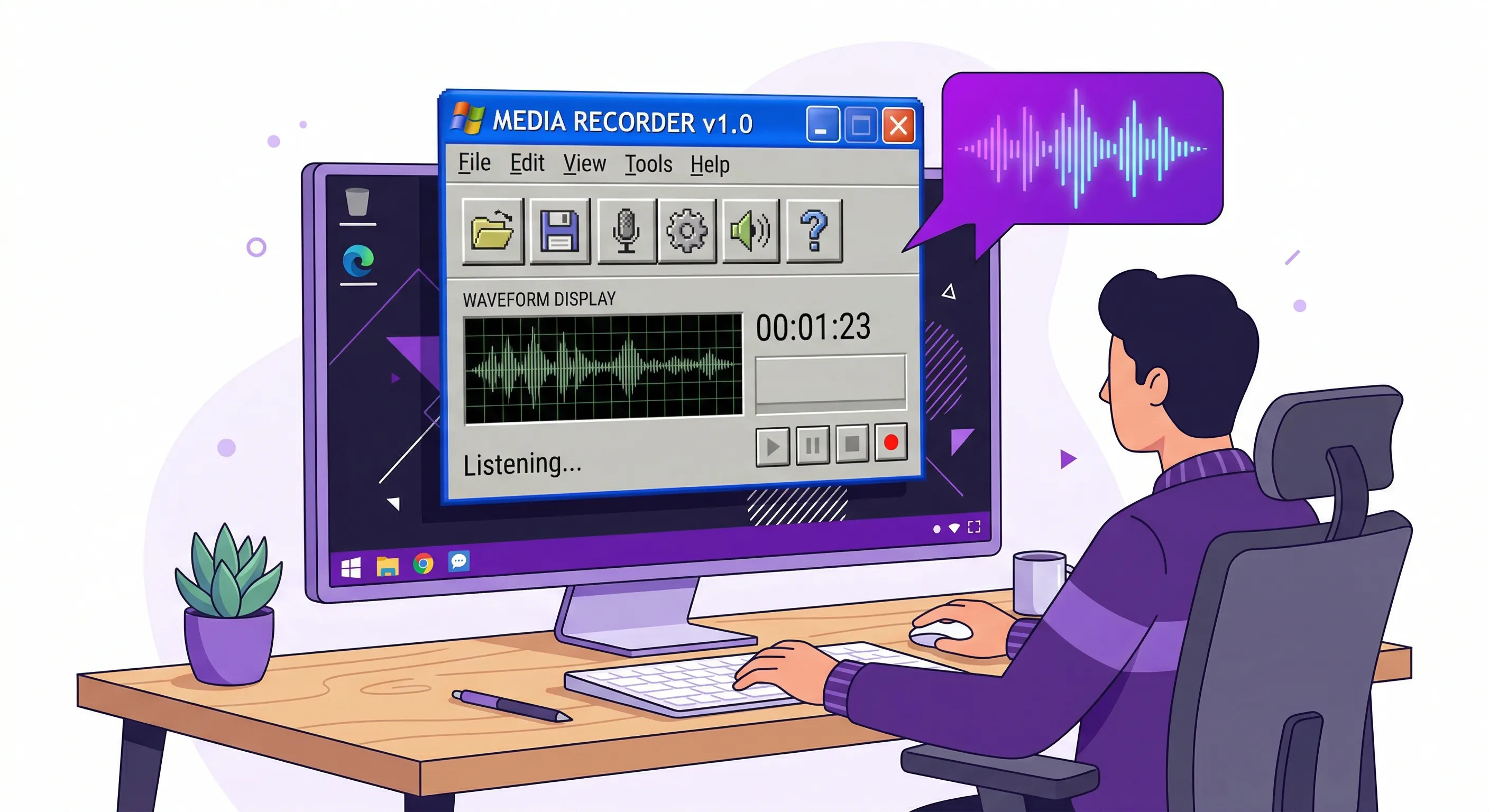
I installed Balabolka on a Tuesday afternoon because someone in a Reddit thread called it "the best free text-to-speech program for Windows, period" and the comment had 400 upvotes. So I downloaded it. The installer was 23 megabytes. Twenty-three. My Slack desktop app is forty times that size and all it does is show me messages I could read in a browser tab. I ran the installer, clicked through a wizard that looked like it was skinned for Windows XP, and thirty seconds later I was staring at an interface that made me feel like I'd time-traveled to 2005.
And I kind of loved it.
Balabolka is a free, offline, Windows-only text-to-speech program made by a Russian developer named Ilya Morozov. It has been around since roughly 2006. That is not a typo. This software predates the iPhone. It predates Chrome. It predates the entire concept of subscribing to software monthly. You download it, you run it, it reads text out loud. No account. No email. No "start your free trial." No cloud. It just sits on your hard drive like a hammer in a toolbox, waiting for you to pick it up.
The Interface: Ugly but Functional
The interface. I need to talk about the interface because it is something. Imagine someone took Microsoft Word 2003, removed all the features except the text area, stapled a row of playback buttons to the toolbar, and called it done. There are dropdown menus across the top — File, Edit, View, Speech, Bookmarks, Tools, Options — and every single one of them opens a cascade of sub-options that feel like they were organized by someone who values thoroughness over aesthetics. The font rendering looks slightly off on a high-DPI display. The icons are 16x16 pixel bitmaps. There is a toolbar button with a picture of a floppy disk on it.
It is, without exaggeration, one of the ugliest programs I have used in the last decade.
But here's the thing about ugly software that works. It works.
How Balabolka Actually Sounds
I pasted a 3,000-word article into the text area, hit the green play button, and Balabolka started reading it immediately. No loading spinner. No "processing your request." No progress bar crawling across the screen while a server somewhere in Virginia converts my text. The words just started coming out of my speakers, one after another, with the current word highlighted in the text area so I could follow along. The latency between pressing play and hearing audio was, and I am not being dramatic, zero. Because the entire thing runs locally on your machine using whatever SAPI 5 voice Windows already has installed.
That last part is important and it is also Balabolka's biggest weakness. The voice quality is entirely dependent on what voices you have on your Windows system. Out of the box on Windows 10 or 11, you get Microsoft David and Microsoft Zira. David sounds like a GPS navigator from 2012 who is mildly disappointed in your life choices. Zira sounds slightly better but still unmistakably robotic, with that weird cadence where every sentence ends like a question? Like she's perpetually unsure about what she just said?
I showed the default voice to my colleague Marcus and he said "that sounds like a computer reading a ransom note" which was harsh but not inaccurate.
The fix is to install better voices. Microsoft has released several "natural" voices for Windows 11 that are genuinely good, and you can also install third-party SAPI 5 voices from companies like Ivona or CereProc. Once I switched to the Microsoft Jenny neural voice, the difference was night and day. Same program, same interface that looks like it fell out of a time capsule, but suddenly the audio sounded modern. Warm. Almost human. Balabolka doesn't care where the voice comes from. It just plays whatever SAPI 5 engine you point it at. This is the old Unix philosophy in Windows clothing — do one thing, delegate the rest.
File Format Support: PDF, EPUB, DOC, and More
So what does Balabolka actually handle in terms of file formats? A lot, as it turns out. Plain text files, obviously. But also DOC and DOCX, PDF, EPUB, ODT, HTML, RTF, and FB2. I threw a 200-page PDF at it, a scanned-text academic paper with headers and footers and page numbers scattered through the body text. Balabolka chewed through it and produced — well, it produced a reading that included every header, every footer, and every page number read aloud as if they were part of the text. "Chapter 3 Methodology Page 47 The participants were selected..." Not great. But I was able to manually clean up the extracted text in Balabolka's editor before hitting play. The program treats everything as editable text once it's loaded. You can delete the junk, rearrange paragraphs, fix OCR errors. It's a text editor that happens to talk.
EPUB files worked better. I loaded a public domain novel from Project Gutenberg and Balabolka parsed it cleanly, chapter breaks and all. The bookmark feature let me drop markers at chapter headings so I could jump around. Speed and pitch sliders sit right on the toolbar — I settled on about 1.3x speed, which felt natural for the Jenny voice without making her sound like she'd had too much coffee. There's also a pronunciation dictionary where you can teach Balabolka how to say specific words. I added "Kubernetes" and "OAuth" because I knew I'd be listening to tech articles and the default pronunciation of both made me physically cringe.
Balabolka's Killer Feature: Free Batch Conversion to MP3
Now. The killer feature. The thing that keeps Balabolka alive in 2026 while flashier apps come and go.
Batch conversion.
You can point Balabolka at a folder full of text files, EPUB files, PDFs, whatever, and it will convert every single one of them into audio files. MP3, WAV, OGG, WMA — pick your format. Walk away. Come back and you have an audiobook. Or a folder full of audio articles. Or your entire Kindle highlights collection read aloud. I set it loose on a folder of 40 text files, each one a chapter from a novel I'd been meaning to read, and forty minutes later I had 40 MP3 files sitting in an output folder ready to transfer to my phone. No subscription. No per-minute charges. No "you've exceeded your free tier limit, please upgrade to Pro." The batch ran on my local CPU using a local voice and the output was mine. Nobody tracked it. Nobody metered it.
This is why Balabolka refuses to die. In a world where every text-to-speech service wants to charge you per character or per minute or per month, Balabolka charges you nothing, ever, and asks for nothing in return except a Windows PC.
Pros and Cons
Pros:
- Completely free, forever — no trial, no subscription, no account
- Offline — zero data sent anywhere, total privacy
- Batch converts entire folders to MP3/WAV/OGG
- Supports PDF, EPUB, DOC, DOCX, HTML, RTF, FB2
- Tiny footprint (23 MB install, minimal RAM)
- Pronunciation dictionary for custom words
- Portable version runs from USB stick
Cons:
- Windows only — no Mac, no Linux GUI
- Default voices sound robotic (need to install better SAPI 5 voices)
- Interface looks like Windows XP — actively hostile to modern users
- No dark mode, no modern UI
- PDFs with headers/footers need manual cleanup
- No web page reading — copy-paste workflow only
- No paragraph highlighting on the original document
Balabolka vs Alternatives: Comparison Table
| Feature | Balabolka | NaturalReader | CastReader | ElevenLabs |
|---|---|---|---|---|
| Price | Free forever | $99.50 one-time | Free (extension) | Pay per character |
| Platform | Windows only | Windows + Mac | Chrome/Edge browser | Web + API |
| Voice quality | Depends on SAPI voices (4-8/10) | Good AI voices (7/10) | Kokoro AI (8/10) | Best available (10/10) |
| Read web pages | No (copy-paste) | Limited | Yes — one click, in-page | No (API/web tool) |
| Batch MP3 export | Yes — full folders | Limited | No | Yes (API) |
| Offline | 100% offline | Partial | No | No |
| File formats | PDF, EPUB, DOC, HTML, RTF, FB2 | PDF, EPUB, DOC | Web pages, Kindle, Medium | Text input only |
| Highlighting | Word (in editor) | Word (in reader) | Paragraph (on page) | None |
| Best for | Batch file conversion | Desktop reading | Web article reading | Professional voiceover |
Who Should Use Balabolka in 2026?
Balabolka is for people who have a specific, recurring need to convert text documents into audio files on a Windows machine without paying for it. Students who want to listen to their textbook PDFs during a commute. Researchers who want to hear their papers read back to them for editing. People with visual impairments who need a reliable, offline screen reader for documents. Writers who use audio playback to catch awkward sentences.
If you want something more modern, NaturalReader ($99.50 one-time) has a clean interface, works on Windows and Mac, and offers cloud-based premium voices. The experience is dramatically smoother — NaturalReader is what you recommend to someone who values their time over their wallet.
And if what you actually want is to listen to web articles — not files on your hard drive — a browser extension like CastReader reads pages directly in your browser with paragraph highlighting. Different tool, different job. Balabolka is for files. CastReader is for web pages. The search for "free text to speech" brings people with very different needs to the same results.
The Bottom Line
I keep coming back to that twenty-three megabyte installer.
There's something almost defiant about Balabolka in 2026. Every other piece of software I use wants to be a platform. Wants my data. Wants to upsell me. Balabolka wants to read text out loud. That's it. It has wanted to do that one thing since 2006 and it still does that one thing and it does it without asking for permission or forgiveness.
Is it beautiful? No. God, no. My colleague Sarah saw it on my screen and asked if I was running software from a museum.
But I converted 40 chapters into MP3 files in under an hour, for free, offline, on a Tuesday afternoon. And that's the whole pitch, really. Balabolka doesn't need to be pretty. It needs to work. And after twenty years, it still does.
