I Tested 10 "Free" Text-to-Speech Tools. Half of Them Lied to Me.
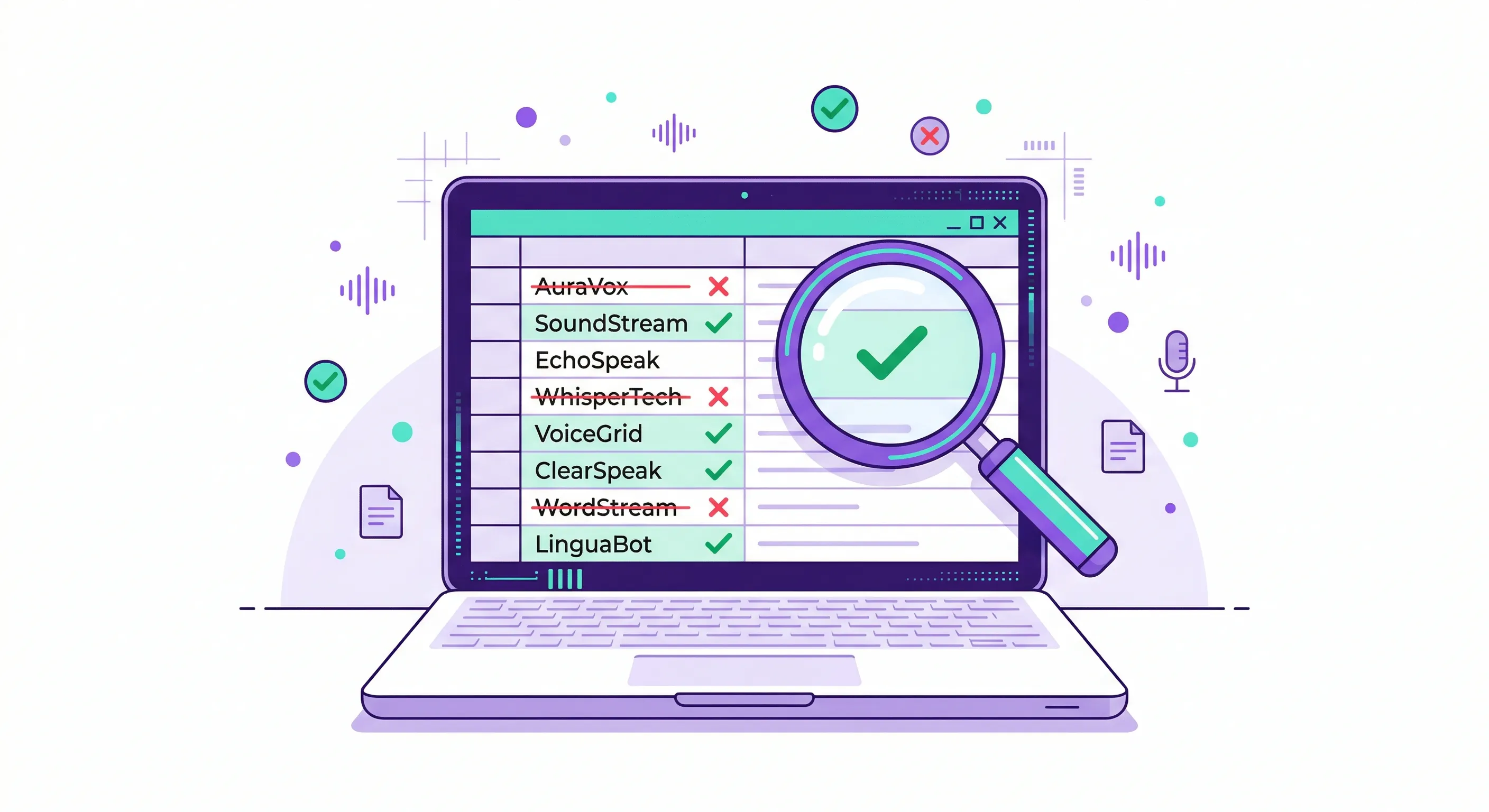
Here's how it usually goes. You search for text to speech free, click the first result, land on a polished website with a big green button that says "Start Reading Free," and three minutes later you're staring at a pricing page. The free tier gives you 500 characters. Five hundred. That's roughly this paragraph. You can hear this paragraph and then you're done. Please enter your credit card for continued access. I've fallen for this exact bait-and-switch so many times that I started keeping a spreadsheet. Not a fancy one. Just a Google Sheet with three columns — tool name, what they claim is free, and what's actually free.
The spreadsheet got long enough that I figured other people might want to see it.
So I spent three weeks testing every text-to-speech tool I could find that claims to be free. Not free trials. Not freemium tiers that expire next Tuesday. Actually, genuinely free. Some are Chrome extensions. Some are baked into operating systems you already own. One looks like it was designed before YouTube existed and still works better than apps that raised $50 million in VC funding. I landed on ten I'd actually recommend, with honest notes about where each falls short because nothing is perfect at zero dollars.
I should be upfront — I work on CastReader, and it's on this list. I've tried to be fair about its limitations. You can judge whether I succeeded.
CastReader is a Chrome extension, and the thing I care about most is the thing that drove me crazy about every other TTS tool I'd tried before we built it — extraction. You click the extension icon on a web page and it needs to figure out what the actual article is. Not the navigation bar. Not the cookie consent banner. Not the "Trending Now" sidebar or the newsletter signup form or the comments section where someone named GuitarDad1997 is arguing about immigration policy. The article. Just the article. CastReader reads the rendered DOM directly, scores content blocks by text density, strips away the noise, and starts reading what you actually came to the page to read. I tested it on a Washington Post article with sticky ads, a floating video player, and one of those "Around the Web" recommendation grids at the bottom. It read the article. Only the article. The paragraph highlighting is the other piece — the current paragraph lights up on the actual page and the view scrolls to follow it, so you can glance at your screen from across the room and know exactly where you are. My roommate saw me using it while doing dishes and said "oh that's like karaoke for articles" and I've been stealing that description ever since. The free tier is real, no expiration, no credit card. Voices are solid but not the best on this list — if you need a voice that sounds like it could narrate a Pixar trailer, this isn't it. And it's Chrome only, no Firefox yet, no Safari, no mobile app. Try it here and decide for yourself.
Read Aloud is the Swiss Army knife that requires an engineering degree to open. Open source, over a million Chrome users, connects to basically every cloud voice engine that exists — Google WaveNet, Amazon Polly, Microsoft Azure, IBM Watson, OpenAI. Bring your own API key and you're running premium voices at raw API cost, which for a typical article is fractions of a cent. The problem is the "bring your own API key" part. My friend David is a backend engineer at a fintech company. Builds distributed systems for a living. He looked at Read Aloud's settings panel and said "this is a lot." Twenty-three configuration options. SSML toggle. Rate and pitch sliders per engine. Custom REST API endpoint field. Without an API key you get Web Speech API, which means your operating system's built-in voice, and on Windows that sounds like a GPS from 2009 reading a recipe for hummus. On macOS it's tolerable. Highlighting exists but jitters — it lands on the wrong word, corrects, jitters again. If you're technical and already have cloud accounts, Read Aloud is genuinely the most powerful free option. If the phrase "API key" makes you nervous, skip it.
NaturalReader has been around so long it feels like a public utility. Not exciting. Not trendy. Gets the job done like a reliable sedan that never breaks down and never gets compliments. The free tier gives you a handful of AI voices that sound noticeably better than browser defaults — I used the Aria voice for a week of daily reading and it was comfortable in the way a well-worn jacket is comfortable, not something you notice until you switch to something worse. There's an immersive reader mode that strips page clutter and gives you clean text on a calm background. The OpenDyslexic font toggle is a small touch that matters enormously to the people who need it. I sent it to my cousin who has dyslexia and she texted back "why didn't anyone tell me about this five years ago." Free tier limits are real though — you get a daily character cap, and I hit it partway through a long research paper and had to wait until the next day. The premium unlock is $99.50 one-time, which I respect in a subscription-addicted world, but that's not free anymore, that's a purchase. For the free tier alone, NaturalReader earns a spot on this list on voice quality. Not on generosity.
Balabolka. Where do I even start.
It's a Windows desktop program that looks like it was built in 2005 because it was built in 2005. The icon bar has a floppy disk on it. The settings panel has nested tabs inside nested tabs. My intern saw it on my screen and asked if I'd been hacked. And it is, improbably, one of the best free text-to-speech tools that exists in 2026. Zero cost. Zero subscription. Zero cloud. Zero data leaving your machine. You paste text in, hit play, it reads. You load a PDF or EPUB or DOCX, it reads. You point it at a folder of fifty text files, walk away, come back, and you have fifty MP3 files. Batch conversion, unlimited, free, forever. Voice quality depends entirely on what SAPI 5 voices your Windows installation has — default Microsoft David sounds like a disappointed GPS navigator, but install the newer Microsoft Jenny neural voice and suddenly it sounds modern. Genuinely good. The catch is that it's Windows only, the UI will scare off anyone under 30, and it doesn't work with web pages — you have to copy-paste text into the app, which means you lose the context of the original page, the layout, the inline images, the ability to see what's being read. For files on your hard drive it's unbeatable at the price point of zero. For web articles you want a browser extension instead.
Google Translate's TTS is the hidden gem nobody talks about. You know you can paste up to 5,000 characters into Google Translate, pick any of 100+ languages, and hit the speaker icon? That's free text-to-speech. The voices are Google's own neural models and they sound good — not cutting-edge, but solidly above average. I've used this for years as a quick way to hear how something sounds before sending an important email. Paste the text, listen, catch the sentence that sounds clunky when spoken aloud. The limit is 5,000 characters per paste, there's no way to load a document, no highlighting, no playback speed control, and Google could change or remove this feature tomorrow because it's not officially a TTS product, it's a translation tool that happens to speak. But it's there, it's free, it works right now, and almost nobody thinks to use it this way. For short text where you just need to hear it once, it's the fastest option on this list. Open a tab, paste, click, done.
macOS and iOS have text-to-speech built in and it's shockingly good for something most people don't know exists. On a Mac, go to System Settings, Accessibility, Spoken Content, and turn on "Speak Selection." Highlight any text anywhere — browser, PDF, email — and press Option-Escape. It reads it. The newer voices Apple added in Ventura and later are legitimately impressive. Zoe and Samantha Enhanced sound natural enough that I've caught myself nodding along like I'm listening to a podcast. On iPhone there's Speak Screen — swipe down from the top with two fingers and it reads the entire screen with a small controller for speed and pause. It even highlights words as it goes. I use this on my phone more than any dedicated TTS app. Works in Safari, in the Kindle app, in Notes, everywhere. The limitation is Apple's ecosystem — Windows or Android, this doesn't exist for you. No API keys, no engine swapping, no power-user knobs. But for people already on Apple devices who want text read aloud without installing anything, it's already there. Has been for years.
Windows Narrator gets a bad reputation and some of it is earned. For years it sounded robotic and felt like an afterthought. But Microsoft has been quietly improving it, and the 2024-2025 updates added natural voices remarkably close to Apple's best. Narrator now works as a full screen reader with web navigation, document reading, and Braille display support. You can also use the simpler "Read Aloud" feature inside Microsoft Edge — open any web page, press Ctrl+Shift+U, and Edge reads with paragraph highlighting and a floating control bar. The Edge voices are powered by Azure neural models and I actually prefer their quality to most Chrome extensions. The irony. It's free because Microsoft subsidizes it as a platform feature. The limitation mirrors Apple's — you're locked into the ecosystem. Edge Read Aloud only works in Edge. Narrator only works on Windows. If you're already using Edge, honestly, just press Ctrl+Shift+U. You might not need anything else.
Android has two built-in options and people consistently confuse them. TalkBack is the full screen reader, designed for blind and low-vision users, and it changes how your entire phone works — everything becomes gesture-driven, single taps select items, double taps activate them. Unless you need a full screen reader, do not turn on TalkBack, you will spend twenty confused minutes trying to figure out how to turn it back off. What you probably want is Select to Speak. Turn it on in Accessibility settings, then tap the floating button and drag your finger over any text on screen. Android reads the selection aloud using Google's neural voices, highlights words as it goes, and gives you play/pause/speed controls. Works in Chrome, in PDFs, in apps, basically anywhere text appears. I've used Select to Speak while walking the dog to listen to long articles and it works well enough that I stopped looking for a dedicated Android TTS app. Voice quality on Pixel phones is excellent. On cheaper Android devices with older Google TTS data, it sounds noticeably worse.
Talkie is the privacy answer to a question most people aren't asking yet but should be. It runs entirely in your browser using Web Speech API. No cloud servers. No data transmission. No accounts. Your text never leaves your machine. The code is open source, the payment model is pay-what-you-want starting at zero, and it does exactly one thing — reads text aloud locally. I tested it while reading internal company strategy documents, the kind of stuff that would make our legal team hyperventilate if it hit a third-party server. Talkie handled it fine because it handled it locally. Voice quality is capped at whatever your operating system provides, which means great on macOS, decent on Windows 11 with natural voices installed, and rough on older systems. No highlighting. No paragraph tracking. No page extraction intelligence. You select text, right-click, and tell it to speak. That's it. My colleague who works in healthcare, deals with patient data daily, heard me describe Talkie and said "that's the only TTS I'd be allowed to use at work." If data privacy matters to you — and if you're reading work documents, financial records, legal briefs, or anything confidential — Talkie is not just a recommendation, it's the only responsible option on this list.
And then there's Microsoft Edge's built-in Read Aloud, which I already mentioned under Windows but deserves its own moment because it's that good. Wait — I realize I folded it into the Narrator section and shortchanged it. Let me correct that. Edge Read Aloud runs on every platform Edge supports — Windows, macOS, Linux, Android, iOS. The voices are Azure-powered neural models and they are, I'll say it plainly, the best free TTS voices most people can access without any setup. Open a web page in Edge, click the three-dot menu, select "Read aloud," and it starts with word-level highlighting and a toolbar for speed and voice selection. On that same Washington Post article I tested CastReader on, Edge handled the content correctly, read the body, skipped the ads. Not perfect on every site — it read image captions and pull quotes I'd rather it skipped — but solid. The catch is you have to use Edge. If Chrome is your browser, this doesn't help. If you're willing to open articles in Edge just for reading, this is genuinely the highest-quality free TTS with zero setup.
So what did I actually learn from three weeks of testing? That "free" means wildly different things. Balabolka is free like a public park — open, unlimited, no strings, maintained by one person out of apparent love for the craft. The OS built-ins from Apple, Google, and Microsoft are free like public roads — subsidized by companies who want you in their ecosystem. NaturalReader's free tier is free like a grocery store sample — here's a taste, the full meal costs money. Read Aloud is free like a community garden — genuinely free but you have to bring your own tools and know how to use them. And then there are the tools that claim to be free but aren't, the ones that burned me enough times to start that spreadsheet, and I've left them off this list entirely because life is too short.
If I had to pick one for someone who just wants to listen to web articles without thinking about it, and they use Chrome, I'd say CastReader. If you're specifically looking for apps to listen to ebooks and library books, I wrote a separate guide to free reading apps with TTS covering Apple Books, Libby, Kindle, and more. If you have EPUBs or PDFs you want to listen to, the CastReader web app handles that too — upload and listen, no extension needed. Yes, it's ours. The extraction and paragraph highlighting solve the problems I personally care about most. If they use Edge, I'd say don't install anything, just press Ctrl+Shift+U. If they're on a Mac, I'd say turn on Speak Selection in Accessibility settings and move on with your life. And if they have a folder full of documents they want converted to audio files on Windows, Balabolka, always Balabolka, ugly and immortal and free.
One more thing — if you're here because you need TTS for a specific situation, I've written deeper guides: text to speech for students covers Kindle textbooks, research papers, and study workflows; TTS for dyslexia explains how dual-channel input (hearing + seeing) reduces decoding effort; and TTS for ADHD covers how paragraph highlighting keeps attention anchored. All free tools, all tested.
