How to Read Kindle Books Aloud in Your Browser
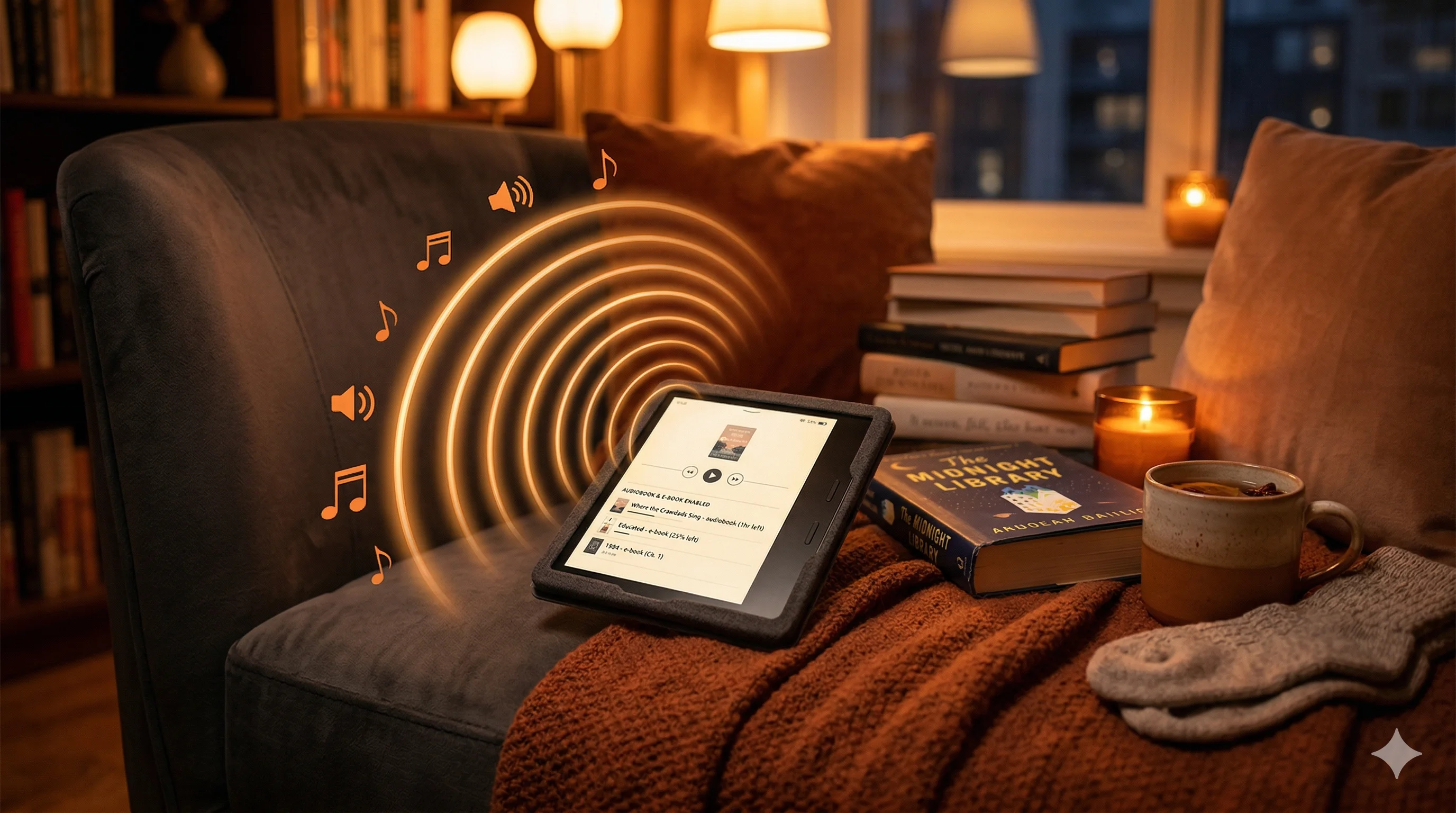
CastReader is currently the only Chrome extension that can read Kindle books aloud in your browser. Every other TTS extension — Read Aloud, NaturalReader, Speechify, all of them — fails because Amazon doesn't put real text in the DOM. CastReader bypasses this with local OCR. Free, no account, no limits. Here's the full story.
You bought a Kindle book. You want to read it aloud in your browser while cooking, commuting, or just resting your eyes. Sounds simple, right?
Open read.amazon.com. Try Read Aloud. Silence. Try Natural Reader. Gibberish. Try Speechify. Nothing useful.
Every single TTS extension fails on Kindle Cloud Reader. And it's not a bug in those extensions — it's how Amazon built Kindle for the browser.
Why TTS Extensions Can't Read Kindle Books
Here's what's actually happening under the hood.
When you open a book on read.amazon.com, Amazon doesn't render text the way normal websites do. Instead of putting readable characters in the HTML (like every other website), Kindle Cloud Reader uses custom font subsets — proprietary fonts where the character mappings are scrambled.
What does that mean? The letter "A" on your screen might actually be stored as "∆" or "♦" in the DOM. Your browser renders it correctly because it downloads Amazon's custom font file that maps those symbols back to the right glyphs. But when a TTS extension tries to read the page text, it sees the raw scrambled characters — not the actual words.
This is Amazon's DRM strategy. It prevents simple copy-paste of book content. And it breaks every text-to-speech tool that relies on reading DOM text.
The result: Read Aloud reads garbage. Natural Reader sees nothing. Speechify gets confused. The browser's built-in screen reader outputs nonsense.
What About Kindle's Built-in TTS?
Amazon added "Assistive Reader" to the Kindle mobile apps in late 2024. It works — on iOS and Android.
But on Kindle Cloud Reader (the browser version at read.amazon.com)? No TTS support at all. Amazon simply hasn't built it for the web.
So if you prefer reading on your laptop or desktop, you're stuck.
How CastReader Reads Kindle Books Aloud in Your Browser
CastReader takes a completely different approach. Instead of trying to read the DOM text (which is scrambled), it reads what your eyes see:
- Captures the rendered page image — the same visual output you see in the browser
- Runs tesseract-wasm OCR locally — reads the actual printed text from the image, right in your browser
- Gets word-level positions — so it knows exactly where each word sits on the page for highlighting
- Sends the real text to the Kokoro AI voice engine — natural voices, not robotic browser speech
The entire process happens in your browser. No data leaves your machine except the extracted text going to the voice API.
How to Use It — Step by Step
Step 1: Install CastReader
Go to the Chrome Web Store and click "Add to Chrome." No account needed, no sign-up required.
Using Edge? It's also on the Edge Add-ons store.
Step 2: Open Your Book
Go to read.amazon.com and open any book in your Kindle library.
Step 3: Click the CastReader Icon
Click the extension icon in your browser toolbar. CastReader will:
- Extract text from the current pages
- Start reading aloud with a natural AI voice
- Highlight the current paragraph as it reads
Step 4: Navigate and Control
- Click any paragraph to jump to it
- Use the floating player to pause, resume, or adjust speed
- Turn pages normally — CastReader follows along
That's it. No configuration, no settings to tweak.
Send It to Your Phone
Reading at your desk is one thing. But what about your commute?
CastReader has a Send to Phone feature. After you start reading a Kindle book, tap the phone icon in the floating player. CastReader sends the audio to your phone via Telegram — no app download needed. For Kindle books, it even auto-turns pages and streams continuously, so you get a full audiobook experience from your Kindle library. Free. No Audible subscription required.
Read the full walkthrough: How to Turn Any Kindle Book into an Audiobook on Your Phone.
What About Other Websites?
CastReader isn't just for Kindle. It works on virtually any website:
- Articles and blogs — Medium, Substack, news sites
- Documentation — Notion, Google Docs, Confluence
- WeRead (微信读书) — another site that uses Canvas rendering instead of DOM text
- AI chat platforms — ChatGPT, Claude, Gemini
- Any standard webpage — the universal extractor handles it automatically
The paragraph-level highlighting and click-to-jump navigation work everywhere.
Limitations Worth Knowing
CastReader isn't perfect. Here's what to expect:
- Image-heavy Kindle pages (like illustrated books or textbooks with diagrams) may cause extraction hiccups. Text-heavy books work best.
- The first page load takes a few seconds — the OCR calibration step needs a moment to process the font mappings.
- It reads what's on your screen — it doesn't download or bypass DRM. Think of it like a screen reader with better voices.
Frequently Asked Questions
Does this bypass Kindle's DRM?
No. CastReader reads the visually rendered text on your screen — the same content you see in your browser. It doesn't download book files or circumvent any protection. It's functionally equivalent to using your OS screen reader, but with natural-sounding AI voices.
What voices are available?
CastReader uses the Kokoro TTS model with natural AI voices in 40+ languages. The voice quality is significantly better than browser built-in TTS or robotic screen readers.
Does it work on Kindle desktop app?
No — only on Kindle Cloud Reader (read.amazon.com) in Chrome or Edge. The desktop Kindle app uses a different rendering engine that CastReader can't access.
Can I adjust the reading speed?
Yes. The floating player has a speed control. You can speed up for familiar content or slow down for dense material.
Does it work offline?
No. The text extraction works offline, but the voice generation requires an internet connection since it uses a cloud TTS API.
Try It
If you've been looking for a way to listen to your Kindle books on Chrome, give CastReader a try. Free, no login, and it actually works on the one platform every other extension fails on.
- Listen to Kindle — Quick-start guide
- Send to Phone — Listen to Kindle books on your phone
- Turn Kindle Books into Audiobooks on Your Phone — Full walkthrough
- Listen to Kindle Books on Phone — All methods compared
- Upload EPUBs & PDFs — Listen to your own documents with AI voices
- Kindle Text to Speech: I Tested 15 Extensions — The full comparison
- How CastReader Cracks Kindle's Font Encryption — Technical deep dive
- Kindle Cloud Reader Tips — Power user guide
